
3D Printing File Types Explained for Beginners
Listen to Content
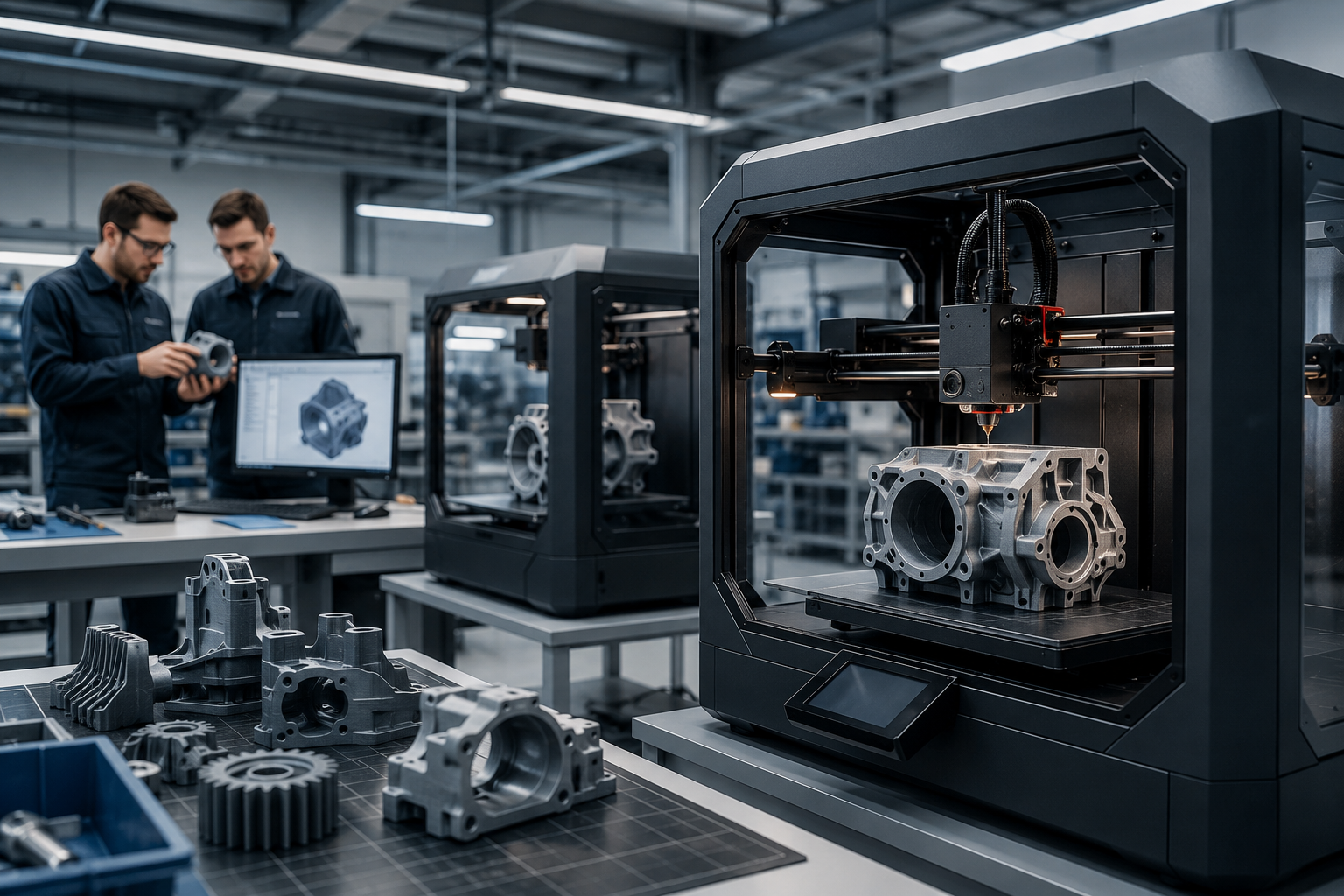
A 3D print starts with a digital file. This file tells the printer what shape to create, how large the object should be, and what details need to appear in the final print.
Choosing the right 3D Printing File matters because not every file format stores the same information. Some are best for simple models, some support color and texture, and some are better for accurate product parts. If the file is wrong, incomplete, or poorly prepared, the print may get delayed or fail.
What Is a 3D Printing File?
A 3D Printing File is a digital model used to create a physical object with a 3D printer. It contains the shape, size, and structure of the object.
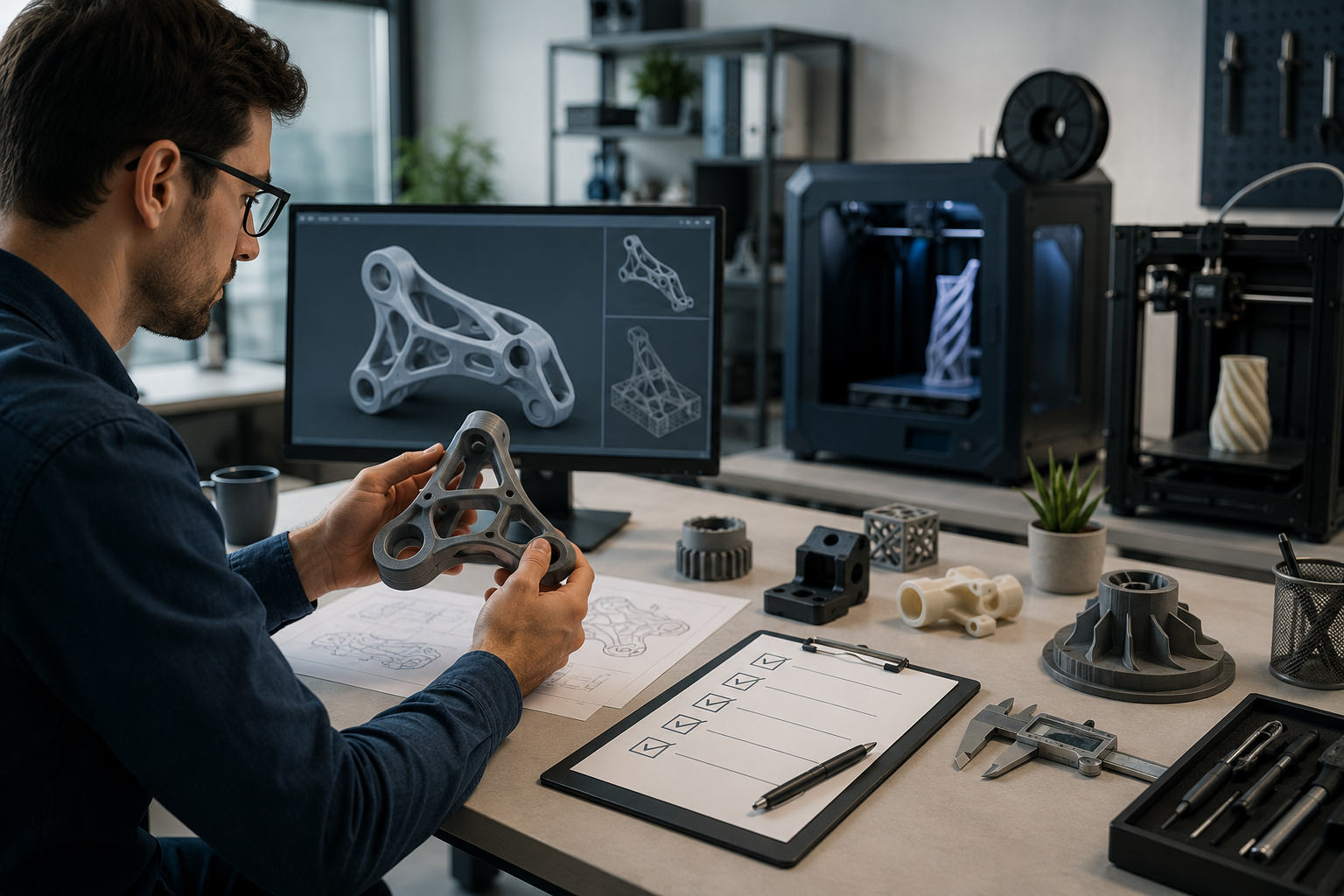
The file is usually created in 3D design software, downloaded from an online model library, scanned from a real object, or prepared by a designer. Once ready, it is uploaded to a online 3D printing by Champ3d tool or opened in slicing software.
A good file helps the printer read the model correctly. A poor file can cause errors such as wrong scale, missing surfaces, broken details, or weak walls.
Most Common 3D Printer File Types
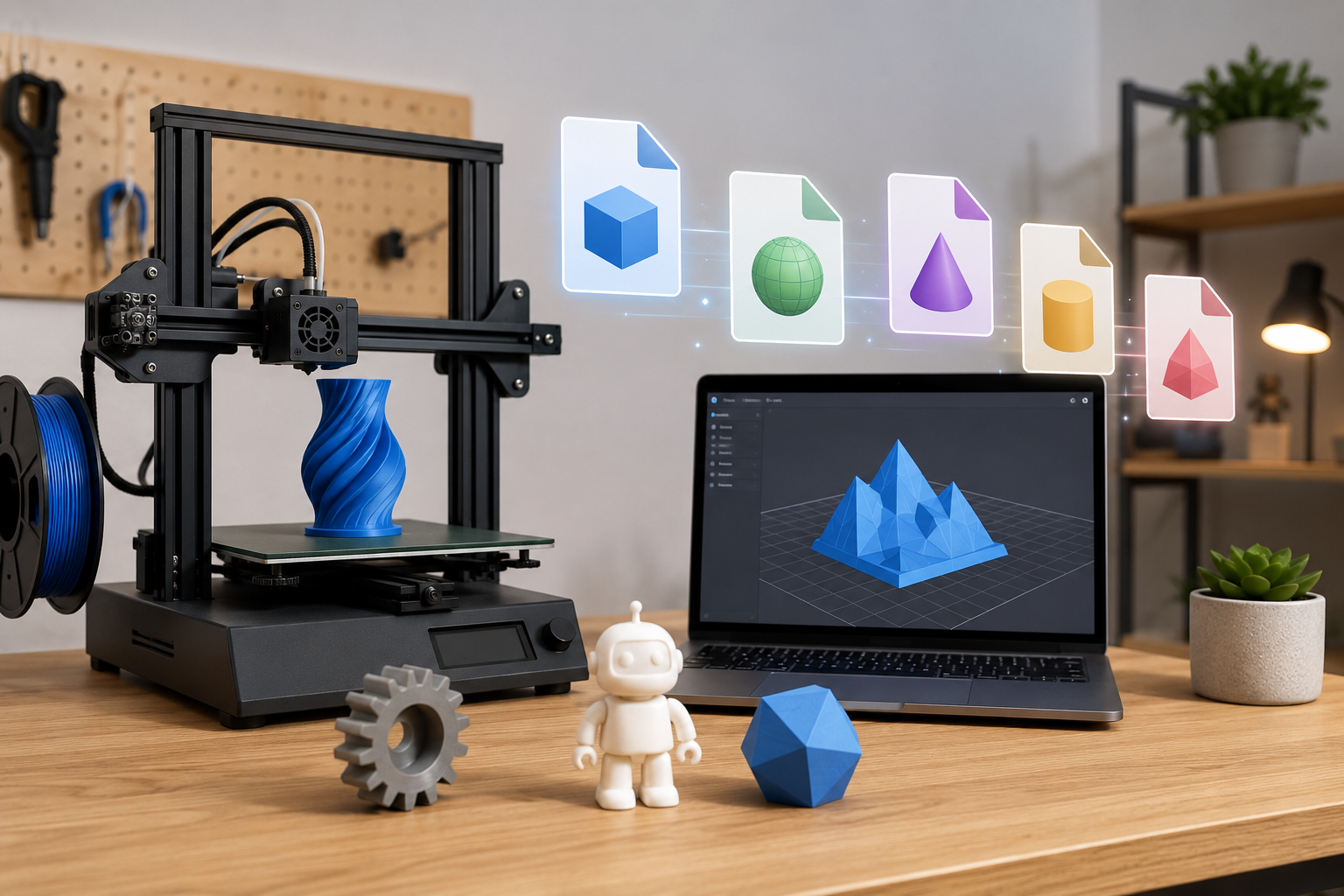
There are many 3d printer file types, but beginners only need to understand a few main ones. STL, OBJ, 3MF, and STEP are the most useful formats for everyday 3D printing needs.
STL File
STL is the most common format used in 3D printing. It stores the surface shape of a model using a mesh of triangles. Most printers, slicing tools, and 3D printing services accept STL files. STL works well for simple parts, prototypes, hobby models, display pieces, and basic objects. It does not store color, texture, or material details. If someone asks for a common 3D printing File, STL is usually the first format people mention.
OBJ File
OBJ files can store more visual details than STL files. They can support color and texture data when used with related material files. OBJ is useful for decorative models, sculptures, character designs, art pieces, and prints where surface appearance matters. It is not always needed for basic mechanical parts.
3MF File
3MF is a newer file format built for modern 3D printing. It can store geometry, color, material, scale, and other print-related details in one file. This makes it more advanced than STL in many cases. 3MF is becoming a popular 3D printing file because it helps reduce missing data and scaling issues.
STEP File
STEP files are common in product design and engineering. They store accurate solid model data instead of only surface mesh information. STEP is useful for product parts, fittings, mechanical components, and designs that may need editing before printing. A printing service may convert STEP into a print-ready format before production.
Which Is the Best 3D Printing File for Your Project?
The best 3D printing file depends on what you want to print. A simple hobby model does not need the same type of file as a product part, textured model, or accurate replacement component.
|
Project Type |
Best File Type |
Why It Works |
|
Simple models |
STL |
Easy to use and widely accepted |
|
Hobby prints |
STL or OBJ |
Good for basic models and visual details |
|
Decorative pieces |
OBJ or 3MF |
Better for color, texture, or more print data |
|
Product parts |
STEP or STL |
STEP is better for editing and accuracy |
|
Mechanical parts |
STEP |
Better for precise dimensions and solid models |
|
Color or texture models |
OBJ or 3MF |
Stores more visual information than STL |
|
Beginner uploads |
STL |
Simple, common, and easy to process |
For most beginners, STL is the easiest starting point. It works for many standard prints and is accepted by most 3D printing platforms.
For designs with color, texture, or complex visual details, OBJ or 3MF may be a better choice. For product parts and accurate components, STEP is often more useful because it keeps the design easier to review and edit.
How to Make 3D Files for Printing
Learning how to make 3d files for printing does not always require advanced skills. You can create, download, scan, or request a file depending on your project.
Use Beginner-Friendly Design Tools
Tools like Tinkercad, SketchUp, Fusion, and Blender can help users create 3D models. Tinkercad is simple for beginners. Blender is better for artistic designs. CAD tools are better for accurate parts.
Once the model is ready, export it as STL, OBJ, 3MF, or another supported format.
Download Ready-Made Files
Many users start by downloading ready-made files from online model libraries. This works well for toys, organizers, decor, miniatures, and hobby prints.
Check the file format, size, license, and print notes before uploading. Some free files may need repair or resizing.
Hire a Designer
If you need a custom object and do not know how to design it, a 3D designer can create the file for you. This is useful for product ideas, replacement parts, gifts, models, or custom decor.
A designer can also prepare the file in the right format for printing.
Scan an Object
3D scanning can create a digital model from a real object. It is useful when you want to copy a shape or recreate a physical item.
Scanned files often need cleanup before printing because they may include rough surfaces, holes, or extra details.
Ask a 3D Printing Service for Help
If you are not sure how to prepare your file, a 3D printing service can guide you. They can check if the file is usable, needs repair, or should be converted into another format.
This is helpful when you have an idea but are unsure how to make it printable.
Common File Problems to Avoid Before Printing
A file may look fine on screen but still create print issues. Checking the file before uploading can save time and help avoid failed prints.
Wrong File Format
A flat image, screenshot, PDF, or drawing cannot be printed directly as a 3D object. The file must contain a 3D model.
Common accepted formats include STL, OBJ, 3MF, and STEP.
Low-Resolution Model
A low-resolution model may print with rough curves, flat edges, or poor surface quality. This often happens with low-quality STL files.
For smooth or detailed objects, use a higher-quality model.
Holes or Broken Geometry
3D models need closed surfaces. Holes, gaps, overlapping faces, and broken mesh areas can confuse slicing software.
These problems should be fixed before printing.
Wrong Scale
Scale issues are common. A model may open too large, too small, or in the wrong measurement unit.
Always confirm the final height, width, and depth before placing an order.
Thin Walls
Thin walls can break during printing or handling. Small text, narrow details, clips, and delicate parts should be checked carefully.
The required wall thickness depends on the material and printing method.
How to Upload and Print Using Champ3D
Printing with Champ3D starts with a ready file or a clear idea. If your file is already prepared, the process is simple. If it needs adjustments, the team can help you understand what may be required before production.
Upload Your 3D File
Start by uploading your 3D model file. STL, OBJ, 3MF, and STEP are common formats used for 3D printing.
Before uploading, check the size, format, and model details as closely as possible.
Choose Material and Printing Options
The right material depends on how the part will be used. A decorative model may need a different material than a functional part, bracket, or prototype.
You can select options based on strength, finish, purpose, and budget.
Review the Quote
After uploading the file and choosing basic options, review the quote. This helps you understand the estimated cost before moving ahead.
If your model is complex or needs changes, the quote may depend on file review.
Confirm and Place Your Order
Once the file, material, and quote look right, confirm the order. The file can then move toward production.
A clean file helps avoid delays and gives the best chance of a smooth printing process.
Get Help If the File Is Not Ready
If your file has errors or you are unsure which format to use, Champ3D can help you take the next step. The right file type helps improve print quality, reduce avoidable issues, and make the process easier.
Conclusion
Choosing the right 3D Printing File helps avoid delays, file errors, and poor print results. STL is a good choice for many simple prints. OBJ works well for models with texture or visual detail. 3MF can store more complete print data. STEP is useful for accurate product parts and designs that may need editing.
If you are unsure which file type is right, Champ3D can help you move from file to finished print with fewer issues. Start with the right format, check the model carefully, and upload a clean file for the best result.
Get a quote for your 3D printed part